
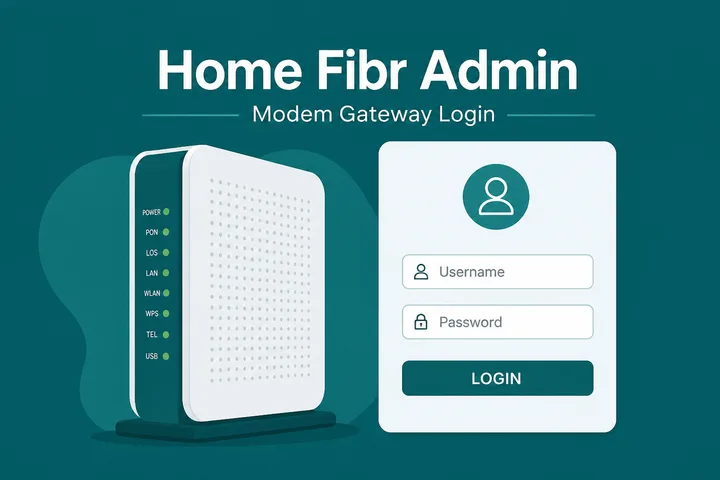
PLDT admin login: connect to your PLDT Home Fibr / Home WiFi network, then open http://192.168.1.1 in the browser address bar. Use the username and password printed on the modem sticker (often admin plus a sticker password — not the same as a Piso 10.0.0.1 portal).
Key Takeaways
- PLDT admin login: connect to your PLDT Home Fibr / Home WiFi network, then open http://192.168.1.1 in the browser address bar.
- Use the username and password printed on the modem sticker (often admin plus a sticker password — not the same as a Piso 10.0.0.1 portal).
- This guide covers how to open the PLDT router admin, sticker credentials, changing WiFi name/password, and why 10.0.0.1 is usually the wrong address for home Fibr.
- If 192.168.1.1 fails, try http://192.168.254.254 (seen on some PLDT units) or confirm the real gateway: gateway checker .
This guide covers how to open the PLDT router admin, sticker credentials, changing WiFi name/password, and why 10.0.0.1 is usually the wrong address for home Fibr.
On this page: Open admin · Sticker password · Change WiFi name/password · vs Piso 10.0.0.1 · Troubleshooting · FAQ
How to Open PLDT Home Fibr Admin
- Connect a phone or laptop to your home PLDT WiFi (the SSID on the modem sticker or the name you set).
- Turn mobile data OFF so traffic stays on the LAN.
- Open Chrome / Edge / Safari and type
http://192.168.1.1in the address bar — not Google search. - Prefer
http://first. Some firmwares warn on https; ignore “search this” prompts. - Log in with sticker username/password (see below).
If 192.168.1.1 fails, try http://192.168.254.254 (seen on some PLDT units) or confirm the real gateway: gateway checker. Deep IP notes: 192.168.1.1.
| Address | When to use |
|---|---|
| http://192.168.1.1 | Most PLDT Home Fibr / Home WiFi routers |
| http://192.168.254.254 | Some PLDT / Fiberhome / older kits |
| http://192.168.0.1 | Occasional alternate LAN |
| http://10.0.0.1 | Usually Piso WiFi — not home PLDT admin |
Sticker Username and Password
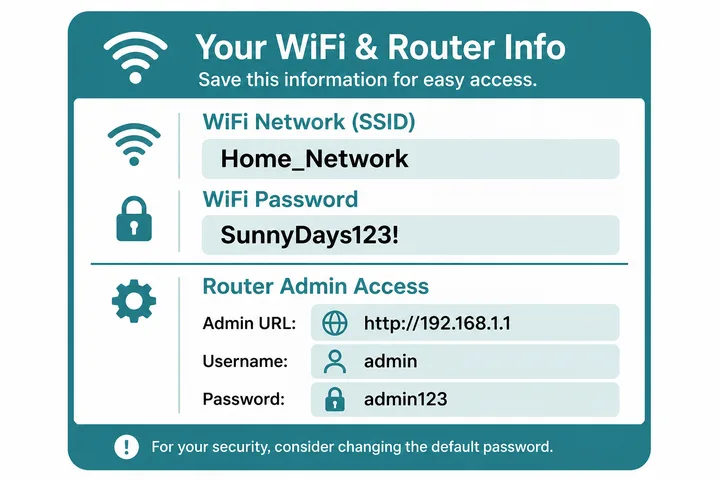
Flip the modem — the label usually shows SSID, WiFi password, Username, and Password (or “Admin Password”).
- Common defaults when no unique print: admin / 1234 or admin / admin.
- Many PLDT Home Fibr units ship a unique admin password — use exactly what is printed.
- Admin password ≠ WiFi password. Admin opens settings; WiFi password joins the SSID.
- If a tech changed admin earlier, sticker defaults may no longer work until factory reset.
Change WiFi Name (SSID) and Password
- Log in to PLDT admin at
http://192.168.1.1(or your confirmed gateway). - Open Wireless, WiFi, WLAN, or Network → Wireless (labels vary by Fiberhome / Huawei / ZTE kit).
- Edit SSID (network name) for 2.4 GHz and/or 5 GHz.
- Set a new WiFi password (WPA2-PSK or WPA3 if offered) — at least 8 characters.
- Click Save / Apply. Wait for the radio to restart.
- Reconnect phones, TVs, and printers with the new name/password.
Write the new WiFi password down offline. Do not confuse it with the admin password you just used to log in.
PLDT 192.168.1.1 vs Piso 10.0.0.1
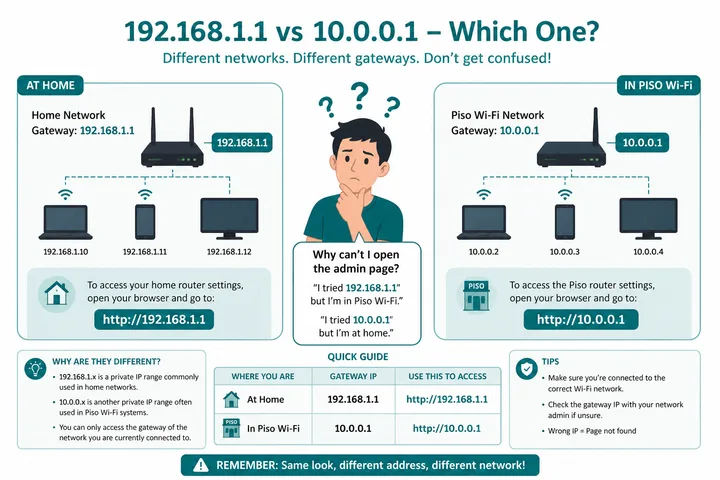
Common mix-up: People search “PLDT 10.0.0.1” after using a sari-sari Piso hotspot. Home Fibr admin is almost never 10.0.0.1. That address is the usual Piso / vendo captive portal.
| Network | Typical gateway | What you see |
|---|---|---|
| PLDT Home Fibr | 192.168.1.1 (sometimes 192.168.254.254) | Router admin login (username/password) |
| Piso WiFi vendo | 10.0.0.1 | Insert coin / voucher / Pause portal |
| Wrong SSID | Whatever that LAN uses | Blank page, wrong portal, or Google search |
Confirm you are on your home SSID, then use 192.168.1.1 or the gateway checker.
Cannot Open PLDT Admin — Fixes
| Symptom | Fix |
|---|---|
| Page never loads | On PLDT WiFi; mobile data off; try http://192.168.1.1 |
| Google search results | Type the IP in the address bar, not the search box |
| SSL / privacy error | Use http:// or proceed only on your own LAN |
| Wrong password | Sticker creds; Caps Lock; 0 vs O; prior tech change |
| 192.168.1.1 fails | Try 192.168.254.254 or gateway checker |
| Opens coin portal | You are on Piso WiFi — switch to home PLDT SSID |
| Still locked out | Power-cycle modem; factory reset only as last resort |
Gateway and Sticker Disambiguation for PLDT Equipment
If the sticker names a hardware vendor rather than the ISP, use the vendor guide: TP-Link router login and Huawei router login cover the two most common families. Readers unsure why the address is unreachable from mobile data should read what is an IP address.
PLDT supplies multiple modem/ONT and router models, and installers can change LAN settings. The authoritative local clues are the exact model label, WiFi SSID/key label, management address if printed, and the gateway reported by a device currently connected to that router. A generic web list cannot safely establish the username, password or address for every PLDT unit.
- The WiFi password joins the wireless network; it is not automatically the web-admin password.
- The optical-network serial, account number and device MAC are identifiers, not login passwords.
- A mesh node may show a different management method from the main ONT/router.
- If the sticker and actual gateway disagree, use the connected device’s gateway and consult PLDT support or the model’s official documentation before resetting.
Independent-site disclaimer: 10001IP is not affiliated with, endorsed by, or an official support channel for PLDT. Product names are used only to help readers identify their own equipment.
Sources, Scope, and Corrections
Claim basis: Login addresses and menu paths are common defaults, not universal settings. Confirm them on the device label, portal, official documentation, or provider support because firmware and owner configuration can differ. See our Editorial Policy for claim labels and source priorities.
Independence: 10001ip.co is not affiliated with, sponsored by, or an official support channel for the brand, ISP, or platform discussed on this page.
Found a mismatch? Send the page URL and privacy-safe evidence using the correction process. This block does not claim a hands-on test or a fact-review date.
Related Guides
- Router IP address list — Compare common and uncommon private gateways
- Default gateway guide — Find the router address used by your device
- Gateway checker — Find the correct local router or portal address
- 192.168.254.254 login — Access the gateway commonly used by PLDT
FAQ — PLDT Admin / Home Fibr Login
What Is the PLDT Admin Login IP?
Most PLDT Home Fibr / PLDT Home WiFi routers use http://192.168.1.1. Some older or alternate units use 192.168.254.254 or 192.168.0.1. It is usually NOT 10.0.0.1 — that address is typical of Piso WiFi vendos.
Where Do I Find the PLDT Admin Username and Password?
Check the sticker on the modem/router (bottom or back). Common defaults are admin / 1234 or admin / admin, but many PLDT Home Fibr units print a unique password. Changed credentials stay until you factory-reset.
How Do I Change the PLDT WiFi Name and Password?
Log in at http://192.168.1.1 (or your real gateway), open Wireless / WiFi / WLAN settings, edit SSID and WiFi password (WPA2/WPA3), then Save/Apply. Reconnect all devices with the new password.
Why Does 10.0.0.1 Open Instead of My PLDT Admin?
You are probably on a Piso WiFi hotspot, not your home PLDT SSID. Home Fibr admin is almost always 192.168.1.1-class. Confirm the WiFi name, then check the gateway with the gateway checker.
PLDT Admin Page Will Not Open — What Should I Try?
Connect to the PLDT WiFi, turn mobile data off, type http://192.168.1.1 in the address bar (not Google, prefer http not https), try sticker credentials, try 192.168.254.254, or run the gateway checker. Still stuck: power-cycle the modem, then factory reset only as last resort.
Related: 192.168.1.1 · Gateway checker · 10.0.0.1 (Piso, not home PLDT)