
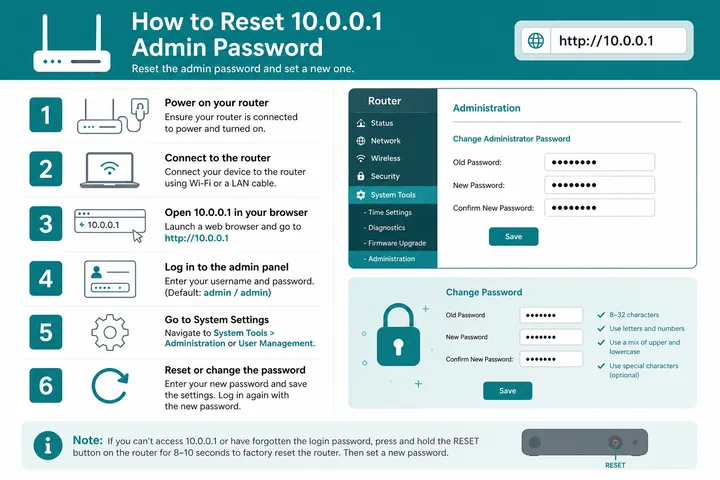
How to reset the 10.0.0.1 password: if you still know the current admin login, change it inside the admin panel. If you are locked out, hold the physical Reset button until LEDs blink — that restores the brand default password and wipes custom settings.
Key Takeaways
- How to reset the 10.0.0.1 password: if you still know the current admin login, change it inside the admin panel.
- If you are locked out, hold the physical Reset button until LEDs blink — that restores the brand default password and wipes custom settings.
- This guide covers 10.0.0.1 admin password defaults (LPB, AdoPisoft, PisoFi, TP-Link, and more), admin vs WiFi password, how to change the password safely, and when a factory reset is actually needed.
- Use these defaults only on a fresh or factory-reset device.
This guide covers 10.0.0.1 admin password defaults (LPB, AdoPisoft, PisoFi, TP-Link, and more), admin vs WiFi password, how to change the password safely, and when a factory reset is actually needed.
On this page: Default passwords · Admin vs WiFi · Change password · Factory reset · When reset is needed · Cannot login fixes · FAQ
Default 10.0.0.1 Admin Passwords by Brand
Use these defaults only on a fresh or factory-reset device. Operators should change them immediately after setup.
| Brand / software | Username | Password | Notes |
|---|---|---|---|
| LPB Piso WiFi | admin | 123456789 | Common on LPB controllers |
| AdoPisoft / Ado Piso | admin | admin | Some builds use administrator / admin1234 |
| PisoFi | administrator | admin12345 | Check sticker if changed |
| TP-Link (home router) | admin | admin | Or printed on label |
| Generic / unknown | admin | admin | Try admin / password next |
| 1Click / other vendo | admin | admin or 123456789 | Confirm with seller docs |
If none work, look for a sticker on the device, check the seller’s setup sheet, or proceed to factory reset (below). Related: Piso WiFi overview.
Admin Password vs WiFi Password
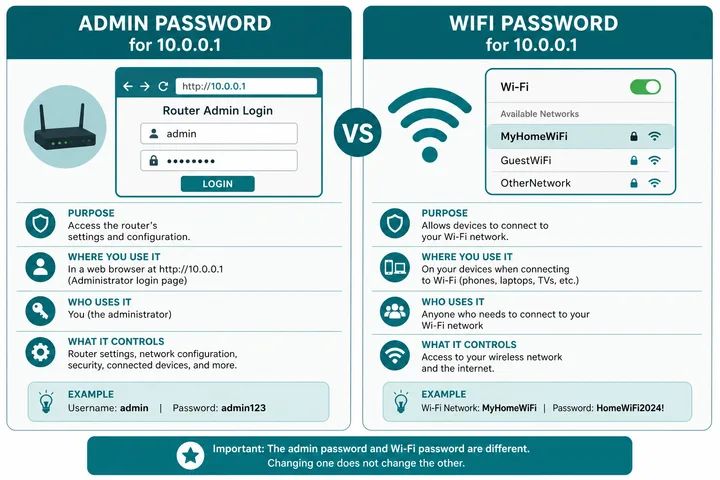
Mixing these up is the #1 reason people “reset the wrong password.”
| Type | What it unlocks | Who needs it |
|---|---|---|
| Admin password | Router / vendo settings at 10.0.0.1 (or /admin) | Owner / technician only |
| WiFi (SSID) password | Connecting a phone/laptop to the hotspot | Customers (if SSID is secured) |
| Portal / voucher session | Paid internet time on the captive portal | Customers after coins/voucher |
Resetting the admin password does not automatically change the WiFi password, and forgetting the WiFi password does not require wiping admin settings — unless both were set from the same panel and you are fully locked out.
How to Change the 10.0.0.1 Admin Password
Prefer changing the password in software when you can still log in — this keeps rates, SSID, and vouchers intact.
- Connect a laptop or phone to the device WiFi (or LAN cable if available).
- Open
http://10.0.0.1orhttp://10.0.0.1/adminin the address bar (not Google). - Sign in with the current admin username and password.
- Open Settings / System / Administration / Password (labels vary by brand).
- Enter the old password, then a new strong password (mix letters + numbers; avoid 123456789 forever).
- Save, then log out and log back in once to confirm.
Write the new password down offline. Do not post it on the vendo cabinet.
Factory Reset Steps (Physical Button)
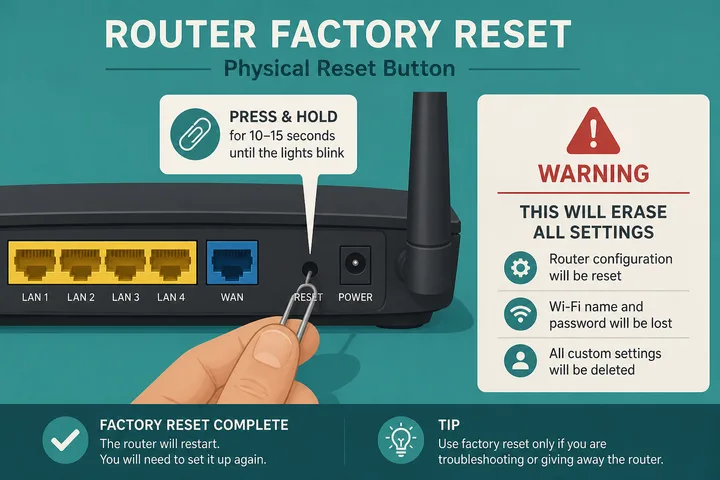
Warning: Holding Reset wipes custom settings — rates, SSID name, WiFi password, vouchers, WAN config, and saved admin password all return to factory defaults. Use only when you cannot log in any other way.
- Leave the device powered on.
- Find the small Reset hole or button (often on the back or bottom).
- Press and hold with a pin for about 8–15 seconds until LEDs flash or the unit reboots.
- Wait 1–2 minutes for boot to finish.
- Reconnect to the default WiFi/SSID if needed.
- Open
http://10.0.0.1and log in with the brand default username/password from the table above. - Immediately change the admin password and reconfigure rates / SSID.
Soft Reset vs Factory Reset
- Reboot / power cycle: unplug 10 seconds — does not clear the password.
- Factory reset (hold Reset): restores defaults and clears the forgotten password.
When a Password Reset Is Needed
- You forgot the admin password and cannot open settings.
- A previous tech left an unknown password.
- You suspect unauthorized admin access and want a clean slate (after reset, still change the default).
- The device was second-hand and still locked.
You do not need a factory reset just to pause time, insert coins, or redeem a voucher — those use the customer portal, not admin. See the 10.0.0.1 homepage for portal basics.
Cannot Login — Fixes before Factory Reset
Before assuming a password problem, confirm you are on the right surface. A coin or voucher screen is a sign-in flow, not admin — see captive portal. If you are on a home router rather than a vendo, the brand path in TP-Link router login may apply, and 10.10.10.1 covers a nearby address people confuse with this one. The free tools hub helps confirm which address is live.
| Symptom | Fix |
|---|---|
| Wrong username/password | Try brand defaults; Caps Lock off; 0 vs O |
| Page will not open | Use http:// not https://; confirm correct WiFi; try /admin |
| Wrong gateway | Portal may not be 10.0.0.1 — use gateway checker |
| Stuck on old login page | Incognito / clear cache / another browser |
| Customer portal only (no admin) | Look for Admin / Owner link or /admin path |
| Still locked out | Physical factory reset, then default password |
Sources, Scope, and Corrections
Claim basis: Network behavior is separated from common portal defaults. Addresses, buttons, rates, credentials, and session behavior can vary by firmware, platform, owner configuration, and device. See our Editorial Policy for claim labels and source priorities.
Found a mismatch? Send the page URL and privacy-safe evidence using the correction process. This block does not claim a hands-on test or a fact-review date.
Related Guides
- Router IP address list — Compare common and uncommon private gateways
- Default gateway guide — Find the router address used by your device
- Gateway checker — Find the correct local router or portal address
- Piso WiFi guide — Understand the portal, sessions, rates and owner side
FAQ — 10.0.0.1 Password Reset
What Is the Default 10.0.0.1 Admin Password?
It depends on the brand: LPB often uses admin / 123456789; AdoPisoft admin / admin; PisoFi administrator / admin12345; many TP-Link units admin / admin. Always change the default after first login.
Is the WiFi Password the Same as the 10.0.0.1 Admin Password?
No. The WiFi / SSID password joins the hotspot. The admin password unlocks router or vendo settings at 10.0.0.1/admin (or similar). Customers never need the admin password to insert coins or pause.
How Do I Reset 10.0.0.1 Password If I Forgot It?
If you only forgot the admin password and cannot log in, use the physical Reset button on the device (usually hold 8–15 seconds). Factory reset restores the default username/password and wipes custom settings.
Will Factory Reset Delete Piso WiFi Rates and Vouchers?
Yes on most controllers — rates, SSID, vouchers, and network settings return to defaults. Back up or note your config before resetting. Prefer Change Password in admin if you can still log in.
I Cannot Log in to 10.0.0.1 Admin — What Else Can I Try?
Confirm you are on the device WiFi, try http (not https), try /admin path, clear cache or use incognito, try default credentials for your brand, then factory reset only if locked out.
Related: Piso WiFi · 10.0.0.1 · Gateway checker