
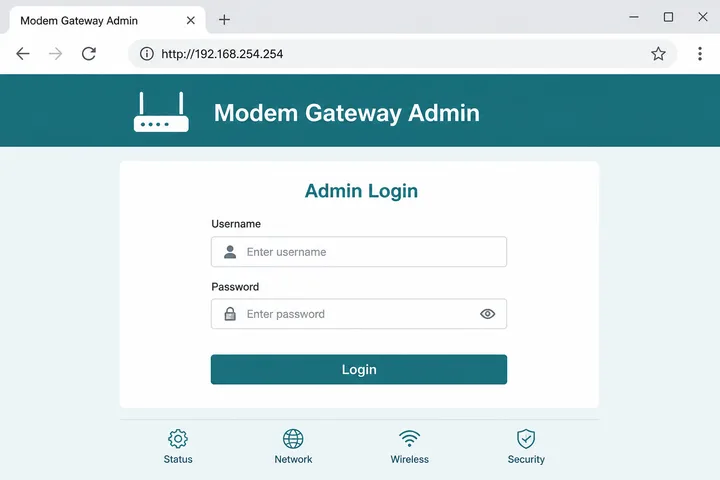
192.168.254.254 is a private router/modem admin gateway used on some ISP devices. Type http://192.168.254.254 in your browser address bar (while on that network) to open the login page.
Key Takeaways
- 192.168.254.254 is a private modem/router admin gateway — open with
http://192.168.254.254. - Typos like
192.168 l 254.254are invalid — digits and dots only. - If it fails, confirm the real gateway — it may be 192.168.1.1, 192.168.0.1, or 10.0.0.1.
- Related: 10.0.0.1 · Piso WiFi · Gateway checker · 192.168.0.1
This guide covers what 192.168.254.254 is, how to log in, default passwords, common typos (including 192.168 l 254.254 and 192.168.l.254.254), fixes when it will not load, and how it compares to 192.168.0.1, 192.168.1.1, and 10.0.0.1.
On this page: What it is · How to log in · Default passwords · Typos · vs other gateways · Not working · FAQ
What Is 192.168.254.254?
192.168.254.254 is a private IPv4 address in the 192.168.0.0/16 range. Some ISP modems and routers use it as the default LAN admin / gateway address — not a public website.
It only works on devices connected to that modem’s WiFi or Ethernet. You will see it on certain cable/DSL/fiber CPE units and older ISP-branded gateways that ship with a .254.254 management IP.
How to Log in to 192.168.254.254
Connect to the modem network, open a browser, type http://192.168.254.254 in the address bar (not the search box), then sign in with the admin credentials on the sticker or manual.
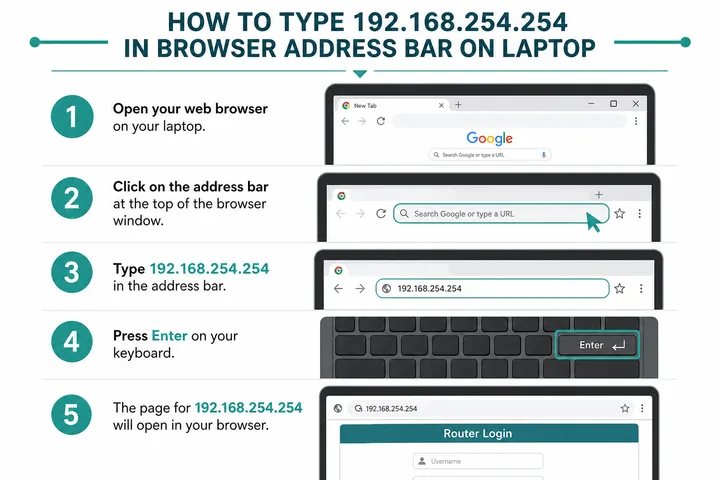
- Connect to the modem/router WiFi or Ethernet.
- Turn off VPN; on phones, turn off mobile data so traffic stays on WiFi.
- Open Chrome, Edge, or Safari.
- Type
http://192.168.254.254→ Enter. - Sign in with admin username and password from the device label.
If the page fails, your real gateway may be 192.168.1.1, 192.168.0.1, or 10.0.0.1 — use the gateway checker.
Default Passwords for 192.168.254.254
Defaults vary by ISP and brand. Check the label on the modem first. Common pairs:
| Brand / type | Username | Password |
|---|---|---|
| ISP modem / CPE | printed on sticker | printed on sticker |
| Many generic routers | admin | admin |
| Some ISP units | admin | password |
| Some cable gateways | admin | (blank) or password |
| Huawei / ZTE (if used) | printed / admin | printed / admin |
Admin password ≠ WiFi password. One opens settings; the other joins the wireless network.
192.168.254.254 Typos and Mistypes
Spaces, letter L, or missing dots make the address invalid. Use digits and dots only: 192.168.254.254.
| Typed | Use |
|---|---|
| 192.168 l 254.254 / 192.168.l.254.254 | 192.168.254.254 |
| 192.168.254.254.1 (extra octet) | 192.168.254.254 |
| 192 168 254 254 / 192-168-254-254 | 192.168.254.254 |
| https://192.168.254.254 | Try http:// first |
| 192.168.254.25 / .255 | Confirm sticker / gateway checker |
192.168.254.254 vs 10.0.0.1 / 192.168.1.1 / 192.168.0.1
These are different private gateway addresses. Guessing the wrong one wastes time — use the one your network assigned.
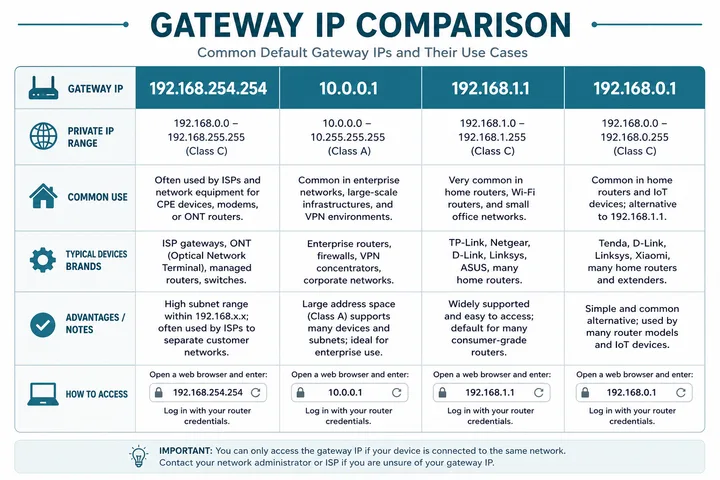
| Address | Typical use | Note |
|---|---|---|
| 192.168.254.254 | Some ISP modems / CPE admin | Primary focus of this page |
| 192.168.1.1 | Very common home / ISP routers | Many PLDT / Globe / Converge units |
| 192.168.0.1 | Many home routers | Netgear / D-Link / Tenda-style admin |
| 10.0.0.1 | Some routers + Piso WiFi portals | See Piso WiFi |
192.168.254.254 Not Working
Most failures are wrong WiFi, wrong IP, VPN, or https. Work through this table:
| Problem | Fix |
|---|---|
| Typed space or letter L | Use 192.168.254.254 exactly |
| Page will not load | Stay on modem WiFi; try http not https; disable VPN |
| Wrong gateway | Check WiFi details or gateway checker |
| Login rejected | Use sticker credentials; factory reset only if you accept wiping settings |
| Phone uses mobile data | Turn mobile data off |
192.168.254.254 on PLDT Home Fibre and Dsl
192.168.254.254 is mainly associated with some PLDT Home Fibre and older DSL modem setups in the Philippines. It may open the ISP-supplied modem or optical network terminal (ONT), although PLDT equipment can also use 192.168.1.1 depending on model and firmware.
Use the exact address printed on the modem label or shown as “Router” or “Default gateway” in your device’s WiFi details. If your PLDT unit uses another address, follow the model and credential guidance in the PLDT admin login guide. Do not change WAN, VLAN, VoIP, or optical settings: those ISP-managed values can disconnect internet or telephone service.
How to Change the WiFi Name or Password
After signing in, open the WLAN, WiFi, or Wireless settings and edit the SSID or WiFi password. Menu names vary by PLDT modem model, but the safe process is usually the same:
- Open the 2.4 GHz or 5 GHz WLAN settings.
- Change SSID for the network name, or WPA/WPA2/WPA3 passphrase for the WiFi password.
- Use a strong password of at least 12 characters and avoid personal details.
- Save or Apply, then reconnect every phone, TV, and computer with the new details.
If separate 2.4 GHz and 5 GHz networks appear, update both unless you intentionally want different names. Avoid editing Internet, WAN, VLAN, or TR-069 fields while changing WiFi.
Admin Page or Piso WiFi Customer Portal?
If the page that loads is a coin or voucher screen rather than router firmware, you are on a hotspot sign-in flow — captive portal explains that redirect and how to force it open. When the firmware menus do appear but look unfamiliar, compare the brand path in TP-Link router login, or narrow the address itself with the free tools hub.
192.168.254.254 is usually a home ISP modem admin page, not a Piso WiFi customer portal. It is intended for the subscriber or network administrator to manage WiFi and modem settings. Customers buying time on a Piso WiFi hotspot more commonly see a captive portal at 10.0.0.1 or an automatically opened sign-in page.
If you only need to insert a coin, pause time, or check remaining minutes, reconnect to the hotspot and open the Piso portal instead. Do not guess modem admin passwords on a network you do not own or manage.
Letter L Typo: 192.168 L 254.254 Explained
The address contains the digit 1, never a lowercase or uppercase letter L. Browsers may search mistyped text instead of opening the local modem. Enter http://192.168.254.254 as one continuous address.
| Mistyped query | Why it fails | Correct entry |
|---|---|---|
| 192.168 l 254.254 | Space and letter L | 192.168.254.254 |
| 192.168.l.254.254 | Letter L creates five parts | 192.168.254.254 |
| 192.168. 254.254 | Space after the dot | 192.168.254.254 |
| 192.168.254.254. | Trailing dot | 192.168.254.254 |
| 192.168.254 .254 | Space before the last dot | 192.168.254.254 |
Secure the Modem Admin Account
Change the default admin password after your first successful login if the modem allows it. Use a unique password that is different from the WiFi password, store it safely, and keep remote administration disabled unless your ISP explicitly requires it.
The page is private but not automatically safe from everyone: any device on the same LAN or WiFi can try to reach 192.168.254.254. Remove unknown clients, use WPA2 or WPA3, disable WPS when practical, and install ISP-approved firmware updates. Only reset the modem as a last resort because a reset can erase PLDT provisioning or custom connection settings.
Sources, Scope, and Corrections
Claim basis: Network behavior is separated from common portal defaults. Addresses, buttons, rates, credentials, and session behavior can vary by firmware, platform, owner configuration, and device. See our Editorial Policy for claim labels and source priorities.
Found a mismatch? Send the page URL and privacy-safe evidence using the correction process. This block does not claim a hands-on test or a fact-review date.
Related Guides
- Router IP address list — Compare common and uncommon private gateways
- Default gateway guide — Find the router address used by your device
- Gateway checker — Find the correct local router or portal address
- What is an IP address? — Understand IPv4, IPv6, public and private addresses
FAQ
What Is 192.168.254.254?
192.168.254.254 is a private IPv4 address used as the admin gateway on some ISP modems and routers. Open it only while connected to that device’s WiFi or Ethernet.
How Do I Log in to 192.168.254.254?
Connect to the modem/router network, type http://192.168.254.254 in the browser address bar, then enter the admin username and password from the device sticker.
Is 192.168 L 254.254 a Real IP?
No. Spaces or the letter L break the address. Use digits only: 192.168.254.254.
Is 192.168.254.254 the Same as 192.168.0.1 or 10.0.0.1?
No. They are different private gateway addresses. Use whichever your network actually assigns — confirm with the gateway checker if unsure.
192.168.254.254 Not Working — What Now?
Confirm you are on that modem’s WiFi, try http (not https), disable VPN and mobile data, and verify the real gateway IP in WiFi details or with the gateway checker.
Does PLDT Use 192.168.254.254?
Some PLDT Home Fibre and older DSL modem models use 192.168.254.254, but others use 192.168.1.1. Check the modem label or your device’s default gateway before logging in.
How Do I Change My PLDT WiFi Password at 192.168.254.254?
Log in, open WLAN or Wireless settings, change the WPA passphrase, and save. Reconnect all devices with the new password, and avoid changing WAN, VLAN, or optical settings.
Why Does 192.168.l.254.254 Open a Search Page?
It contains a letter L and an extra address part, so the browser treats it as a search. Type http://192.168.254.254 with four number groups and no spaces or trailing dot.