
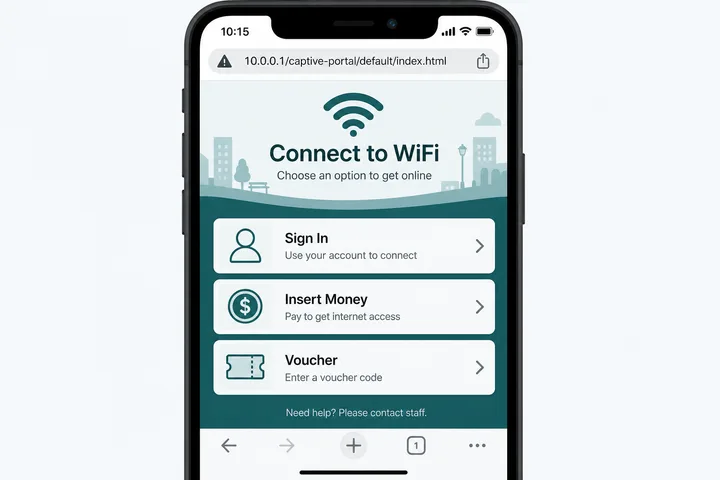
A captive portal is the local sign-in, payment, voucher, or terms page shown before a WiFi network lets you use the internet. On many Piso WiFi networks it opens at http://10.0.0.1; some controllers use the exact path http://10.0.0.1/captive-portal/default/index.html.
Key Takeaways
- A captive portal is the local sign-in, payment, voucher, or terms page shown before a WiFi network lets you use the internet.
- On many Piso WiFi networks it opens at http://10.0.0.1 ; some controllers use the exact path http://10.0.0.1/captive-portal/default/index.html .
- Connect to the hotspot first, turn off mobile data and VPN, and use http rather than https.
- The path is local to the hotspot—it will not normally load from another WiFi or cellular connection.
Connect to the hotspot first, turn off mobile data and VPN, and use http rather than https. The path is local to the hotspot—it will not normally load from another WiFi or cellular connection.
On this page: What it is · Exact 10.0.0.1 path · How redirect works · Open it manually · Device prompts · HTTP vs HTTPS · Portal not opening · Portal vs admin · Security · FAQ
What Is a Captive Portal?
A captive portal is an access-control page placed between a device and the wider internet. Joining the WiFi establishes a local network connection, but the controller keeps ordinary traffic blocked until the user signs in, accepts terms, enters a voucher, or buys time.
| Stage | What works | What the user sees |
|---|---|---|
| Before authorization | Local WiFi and portal only | Sign in, terms, voucher, or payment |
| After authorization | Internet under the hotspot policy | Connected session and often remaining time |
| After expiry or logout | Portal access returns | Buy, redeem, sign in, or resume again |
For coin-operated access, see the broader Piso WiFi guide. The captive portal is the customer-facing gate, not the internet itself.
What Is /captive-portal/default/index.html on 10.0.0.1?
/captive-portal/default/index.html is a URL path under the local host 10.0.0.1. On controllers that use it, the complete address is: http://10.0.0.1/captive-portal/default/index.html. “default” commonly identifies a portal template and “index.html” is its entry page.
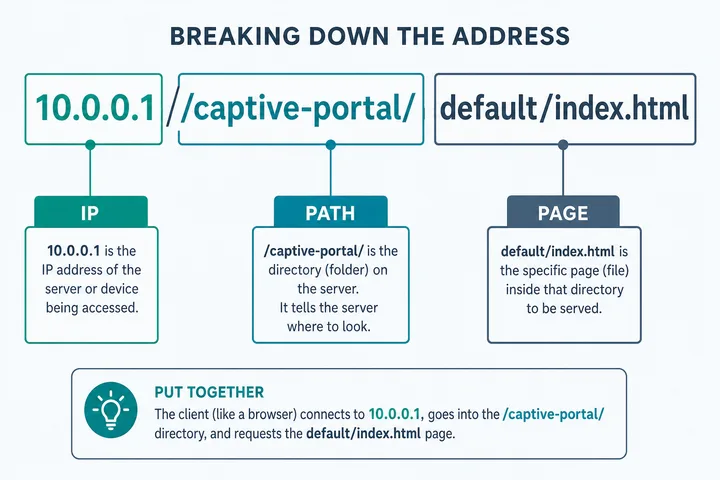
| URL part | Meaning |
|---|---|
http:// | Plain HTTP scheme commonly used for local portal discovery |
10.0.0.1 | Private local IPv4 host or gateway |
/captive-portal/ | Portal application directory or route |
default/ | Default theme, profile, or site configuration |
index.html | Entry document returned by that controller |
Not every hotspot uses this exact route. If it returns “not found,” start with http://10.0.0.1 and let the controller select its own page. Do not use 10.0.0.0.1: five parts make it invalid IPv4.
How Captive Portal Redirect Works
Phones and computers probe a small operating-system test URL after joining WiFi. An unrestricted network returns the expected response. A captive network intercepts that initial plain-HTTP request or answers the connectivity check differently, causing the operating system to open a mini browser.
- Your device joins the SSID and receives a local IP, DNS settings, and a default gateway.
- The operating system sends a connectivity probe.
- The hotspot detects that your device or session is not authorized.
- It returns or redirects to its local captive portal.
- After payment, voucher, login, or acceptance, the controller authorizes that device/session.
- Normal traffic is forwarded until time, quota, or policy ends.
Authorization may be tied to a device MAC address, session cookie, voucher, or controller record. Private/randomized MAC changes can therefore make an existing session look like a new device.
How to Open the Captive Portal Manually
If no pop-up appears, open the local address yourself while connected to the hotspot:
- Join the intended Piso WiFi or public hotspot SSID.
- Turn off cellular/mobile data, VPN, Private Relay, and automatic network switching temporarily.
- Open a full browser, not an in-app browser.
- Type
http://10.0.0.1in the address bar. - If instructed by the operator, try
http://10.0.0.1/captive-portal/default/index.html. - If the gateway differs, find it with the gateway checker.
A plain-HTTP page such as http://neverssl.com can provoke portal detection because it does not require an HTTPS certificate before redirection.
Android, iPhone, and Windows Captive Portal Prompts
| Device | Typical prompt | Manual fallback |
|---|---|---|
| Android | “Sign in to Wi-Fi network” notification | Tap notification, or Chrome → http://10.0.0.1 |
| iPhone / iPad | Captive Network Assistant sheet | Safari → http://10.0.0.1; disable Private Relay for testing |
| Windows 10/11 | “Action needed” or browser sign-in | Edge → http://10.0.0.1; reconnect if prompt is stale |
| macOS | Captive portal assistant window | Safari → local gateway or an HTTP-only page |
When the Mini Browser Closes Too Early
Complete payment or voucher entry in a normal browser. Mini portal windows sometimes close after their connectivity test succeeds, even when you still want to view remaining time or Pause controls.
HTTP vs HTTPS on Captive Portals
Use http:// for the initial local portal. HTTPS is designed to prevent a network from impersonating the secure site you requested. A hotspot cannot safely redirect an arbitrary HTTPS destination without a certificate mismatch, so modern browsers may show a privacy error or refuse the redirect.
- Type
http://10.0.0.1, nothttps://10.0.0.1, unless the operator explicitly supports HTTPS. - Do not bypass certificate warnings to enter sensitive credentials.
- After authorization, normal public websites should use HTTPS as usual.
- The portal itself may switch to a valid HTTPS payment provider; verify its domain before paying.
Captive Portal Not Opening: Practical Fixes
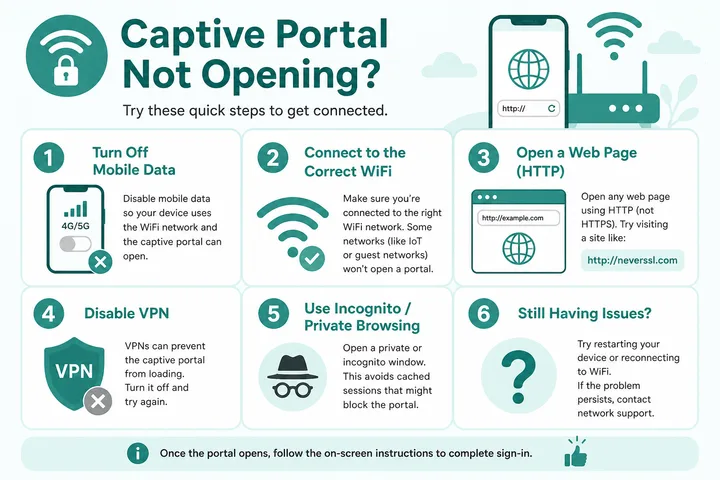
| Symptom | Likely cause | Fix |
|---|---|---|
| 10.0.0.1 times out | Wrong WiFi or wrong gateway | Reconnect; use gateway checker |
| Browser searches the text | Address entered in search field | Type the full http:// URL in the address bar |
| Privacy / certificate warning | HTTPS interception or unsupported local TLS | Use http://10.0.0.1; do not submit secrets through warnings |
| Phone says no internet and switches away | Mobile fallback / smart switch | Disable mobile data and auto-switch temporarily |
| Portal opens but payment/session fails | Controller, coin slot, or voucher issue | See Piso WiFi not working |
| Exact path gives 404 | Controller uses another route | Open the gateway root at 10.0.0.1 |
Captive Portal vs Router Admin Page
| Feature | Captive portal | Router admin |
|---|---|---|
| Audience | Guests / customers | Network owner or administrator |
| Purpose | Authorize internet access, payment, vouchers, terms | Configure WiFi, LAN, WAN, firewall, firmware |
| Credentials | Voucher, account, payment, or none | Privileged administrator password |
| Typical Piso location | http://10.0.0.1 or portal path | Separate admin path/interface; model-dependent |
| Safe action | Use the customer controls shown | Owners only; avoid changing unknown settings |
The same device can host both interfaces, but sharing a host does not make the customer portal an admin login. Start at the 10.0.0.1 guide if you need to identify which interface you reached.
Captive Portal Security and Privacy
- Treat open hotspot traffic as untrusted; prefer HTTPS apps and websites.
- Verify payment domains and amounts before submitting card or wallet information.
- Do not install certificates, profiles, or apps merely to clear a portal unless you trust the operator and understand why.
- Use unique passwords; a portal operator should not need your email password.
- Forget the network after use if you do not want automatic reconnection.
- A VPN can be useful after authorization, but may need to be paused briefly to reach the local portal.
Captive Portal, DHCP, DNS and Session Identity
Portals appear on both private and community networks. WiFi ng Bayan covers the public side, while ending a paid session correctly is explained in Piso WiFi logout. Browser-side checks used here are collected in the free tools hub.
Joining a captive network usually starts with DHCP assigning local network settings. The network then detects unauthenticated traffic and presents a sign-in page through operating-system connectivity checks, an HTTP redirect, DNS behavior, or policy enforcement at the gateway/controller. The portal is the user interface; the access-control system is what permits or blocks traffic after payment or acceptance.
| Entity | Relationship to the portal |
|---|---|
| DHCP | Provides the client address, gateway and often DNS settings needed to reach local services |
| DNS | Resolves names; failure or interception can affect portal discovery but does not itself grant access |
| HTTP/HTTPS | HTTP can be redirected; HTTPS certificate protections intentionally prevent transparent impersonation |
| Cookie or token | May preserve browser-side state, but is not always the primary paid-session identity |
| MAC/account/voucher | May bind authorization to a device, account or entitlement according to operator policy |
| Default gateway/controller | Enforces routing or access rules; may host the portal or send users to another local service |
Because these components are distinct, a portal page can load while the ISP uplink is down, or the internet can be healthy while one device cannot rediscover its portal session. Diagnose local addressing, portal authorization and upstream connectivity as separate layers.
Sources, Scope, and Corrections
Claim basis: Standards-based networking behavior is treated as Protocol fact; addresses, redirects, labels, and menus are marked as common or device-dependent where they can vary. See our Editorial Policy for claim labels and source priorities.
Found a mismatch? Send the page URL and privacy-safe evidence using the correction process. This block does not claim a hands-on test or a fact-review date.
Related Guides
- Free tools hub — Choose a gateway checker, session helper or rate calculator
- Piso WiFi guide — Understand the portal, sessions, rates and owner side
- Default gateway guide — Find the router address used by your device
- WiFi ng Bayan — Connect to community and public WiFi hotspots
Captive Portal FAQ
What Is a Captive Portal?
A captive portal is a local sign-in, payment, voucher, or terms page shown before a WiFi network allows normal internet access. Piso WiFi networks commonly serve it from http://10.0.0.1.
What Is 10.0.0.1/captive-portal/default/index.html?
It is a local captive-portal page path used by some hotspot controllers. It can open only while connected to the WiFi network serving that page; it is not a public internet website.
How Do I Open a Captive Portal Manually?
Stay connected to the hotspot, turn off mobile data and VPN, then open http://10.0.0.1 or http://10.0.0.1/captive-portal/default/index.html. An HTTP-only test page such as http://neverssl.com can also trigger redirection.
Why Does the Captive Portal Not Open over HTTPS?
HTTPS authenticates the requested site and blocks silent interception. A portal normally detects or redirects plain HTTP first, so type http://10.0.0.1 explicitly instead of https://.
Is 10.0.0.0.1 a Captive Portal Address?
No. 10.0.0.0.1 has five numeric parts and is not valid IPv4. The usual Piso WiFi portal address is 10.0.0.1.
Is the Captive Portal the Router Admin Page?
Not necessarily. A captive portal is the customer access screen; router admin changes network settings and requires owner credentials. They may share a gateway host but use different paths and permissions.
Related 10001ip Guides
- 10.0.0.1 — local gateway and portal hub
- Piso WiFi — payment, voucher, pause, and access context
- Piso WiFi not working — deeper failure checklist
- Gateway checker — identify the address assigned by your network