
Piso WiFi machine (vendo) is the owner-side hardware stack that sells timed WiFi via coins or vouchers. Typical setup: router + controller/portal + coin slot — customers pay at http://10.0.0.1; owners configure rates, pause, and vouchers at http://10.0.0.1/admin.
Key Takeaways
- Piso WiFi machine (vendo) is the owner-side hardware stack that sells timed WiFi via coins or vouchers.
- Typical setup: router + controller/portal + coin slot — customers pay at http://10.0.0.1 ; owners configure rates, pause, and vouchers at http://10.0.0.1/admin .
- This page is for operators: what the machine is, hardware stack, admin setup overview, rates/timer, buy-time paths, pause enable, voucher generation, and practical revenue tips — with links to brand and tool…
- Quick path: Power up → join machine WiFi → http://10.0.0.1/admin → set rates & pause → test /home#buy → generate vouchers → change default password.
This page is for operators: what the machine is, hardware stack, admin setup overview, rates/timer, buy-time paths, pause enable, voucher generation, and practical revenue tips — with links to brand and tool pages.
Quick path: Power up → join machine WiFi → http://10.0.0.1/admin → set rates & pause → test /home#buy → generate vouchers → change default password.
On this page: What it is · Hardware stack · Admin setup · Rates & timer · Buy time paths · Enable pause · Vouchers · Revenue tips · FAQ
What Is a Piso WiFi Machine?
A Piso WiFi machine (also piso wifi vendo) is a prepaid public WiFi kiosk common in Philippine sari-sari stores, terminals, and barangay spots. “Piso” = peso: users buy short sessions by the coin or voucher.
The machine is not one brand. It is a category of hardware + portal software. Brands like LPB, AdoPisoft, and JuanFi run the captive portal; the physical box is the vendo.
- Service category: Piso WiFi
- User portal: usually
http://10.0.0.1 - Owner panel: usually
http://10.0.0.1/admin - This page = owner/money cluster (setup, rates, vouchers, revenue)
Hardware Stack (Router + Controller + Coin Slot)
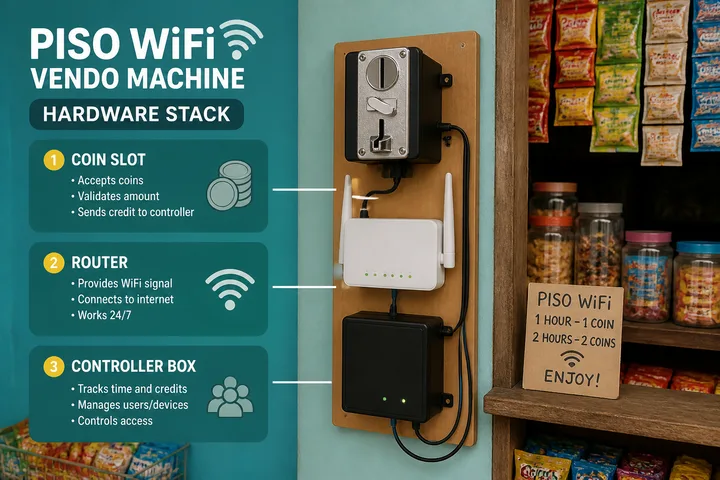
Most vendos share the same three-layer stack:
| Layer | Role | Notes |
|---|---|---|
| Router / AP | WiFi radio + LAN gateway | Often TP-Link or MikroTik (JuanFi) |
| Controller / portal board | Captive portal, timer, admin UI | LPB, AdoPisoft, JuanFi NodeMCU, etc. |
| Coin slot / acceptor | Accepts coins → credits session | Wired to controller pulse/serial |
Allan coinslots, main boards, custom boards, and timers are one hardware family used in these builds. Model numbers, wiring, and marketplace parts are covered on Allan Piso WiFi. The portal and pause behavior still come from the software on the controller, not from the coinslot brand.
- Power + stable ISP uplink matter more than fancy branding.
- Keep the coin acceptor grounded and free of jammed coins — downtime kills daily revenue.
- Label the SSID clearly (shop name + “Piso WiFi”) so customers find you fast.
Setup Overview at 10.0.0.1/admin
First-boot owner loop (brand menus differ; the IP pattern is the same):
- Connect a laptop/phone to the machine’s WiFi (or Ethernet if available).
- Turn mobile data OFF.
- Open
http://10.0.0.1/adminin the address bar (http, not https). - Log in with sticker/installer defaults — then change the password.
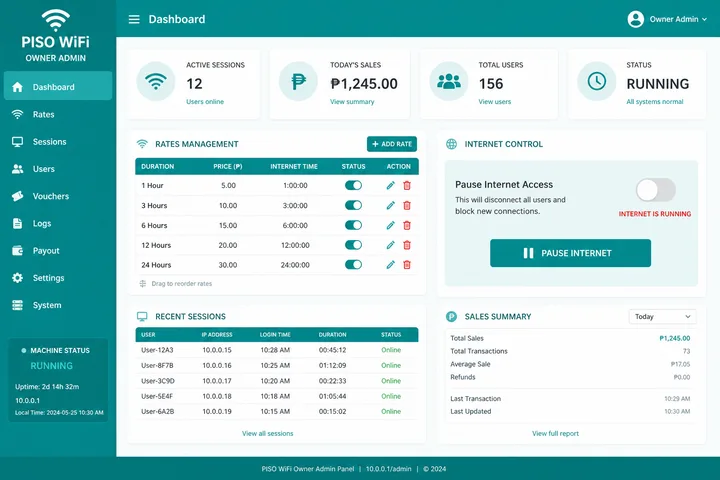
- Set SSID, rates/timer, pause enable, voucher batch, and optionally bandwidth limits.
- Test a full customer path: coin insert or voucher → browse → pause → resume.
| URL | Who | Purpose |
|---|---|---|
http://10.0.0.1 | Customers | Pay, status, pause |
http://10.0.0.1/admin | Owners | Rates, pause, vouchers, users |
http://10.0.0.1/home#buy | Customers (many builds) | Buy-time / insert-money hash route |
http://10.0.0.1/status | Active session | Remaining time (many builds) |
Brand-specific defaults: LPB · AdoPisoft · JuanFi.
Rates and Timer
Rates map peso → minutes (and sometimes speed tiers). Keep packages simple: e.g. ₱5 / ₱10 / ₱20 with clear minute values customers can compare.
- Open admin → Rates / Timer / Packages (wording varies).
- Define each coin value and matching minutes.
- Optional: set idle timeout and max session length.
- Save, then buy a test session from a second phone.
Plan fair packages before you go live with the calculator:
Buy Time Paths (Coins & Vouchers)
Customers need one obvious pay path. On many portals the buy screen is the home portal or a hash route like http://10.0.0.1/home#buy.
- Join the vendo SSID; mobile data off.
- Open
http://10.0.0.1(orhttp://10.0.0.1/home#buyif your firmware uses it). - Choose Insert Money / coins, or enter a voucher code.
- Confirm remaining time on status / portal home.
If the portal fails to load: Piso WiFi not working · gateway checker.
Enable Pause (Owner)
Pause Time is a retention feature: customers freeze unused minutes and return later. If the button is missing, enable it in admin (Portal / Insert Coin / Session controls → Pause/Resume).
- Admin → portal or session settings.
- Enable Allow Pause Time / Pause-Resume.
- Save, then test: pay → Pause → Resume on the same device.
Customer steps and device troubleshooting: Piso WiFi pause time.
Voucher Generation
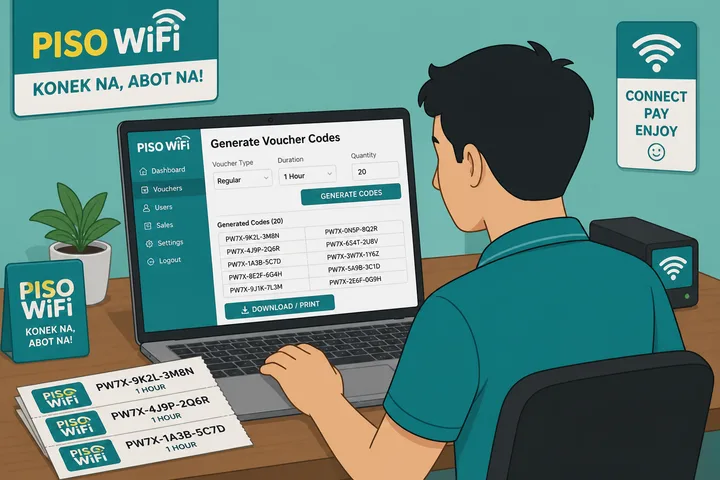
Vouchers let you sell time without coins — useful for GCash top-ups, remote sales, and empty-acceptor downtime.
- Admin → Vouchers / Prepaid codes.
- Choose amount (peso/time), quantity, and expiry if available.
- Generate → print or copy codes.
- Customer redeems on the portal buy/voucher screen.
Full redeem + format help: Piso WiFi voucher code.
Revenue Tips (No Fluff)
- Post clear rates on the machine face — confusion kills first-time inserts.
- Keep pause enabled if your neighborhood has short visits (students, tricycle hubs).
- Stock vouchers for when the coin slot jams.
- Monitor uptime: reboot schedule + spare power adapter beats “marketing.”
- Do not race to ₱1 for long sessions if your ISP cap is thin — slow WiFi churns bad reviews.
- Change default admin passwords; open admin panels get wiped by neighbors.
Compare portal platforms before you buy a controller: LPB · AdoPisoft · JuanFi.
Owner BOM: What Each Component Does
Component choice is tied to the controller you plan to run. Compare JuanFi, PisoFi, and LBS Piso WiFi before buying, because admin menus and supported payment paths differ. Pricing and package math is easier in the free tools hub.
A practical bill of materials starts with roles, not brand names. Compatibility between the controller firmware, coin signal, router, power supply, and uplink matters more than buying the most expensive part. Confirm electrical ratings and supported interfaces with the seller or installer before wiring anything.
| Component | Owner-side role | Confirm before buying |
|---|---|---|
| Coin acceptor | Recognizes configured coin denominations and sends pulses or another supported signal | Accepted coins, pulse settings, supply voltage, connector and anti-jam access |
| Controller or portal device | Credits time, tracks sessions, serves the captive portal and stores rates or vouchers | Supported router topology, firmware, storage, backup and recovery method |
| Router / access point | Creates the customer WiFi network and moves traffic between clients, controller and uplink | Client capacity, coverage, Ethernet ports, supported management mode and ventilation |
| ISP modem / ONT and uplink | Provides the actual internet connection; the vendo portal alone does not create internet service | Plan terms, usable speed, data policy, modem handoff and outage support |
| Power supplies, enclosure and cabling | Keeps components powered, protected and serviceable | Correct voltage/current, airflow, grounding, cable strain relief and safe coin-box access |
Setup Sequence, Location and Uplink Sizing
- Bench-test the controller, router and portal before mounting the coin acceptor.
- Configure the owner password, SSID, rates, session rules and time zone; record a recovery copy where the platform supports one.
- Calibrate accepted coins and verify that each denomination credits the intended minutes exactly once.
- Connect the ISP uplink, then test DNS, normal browsing, the portal, voucher redemption, pause/resume and expiry from a customer device.
- Install in a dry, ventilated, visible location with controlled access to power, Ethernet and the cash box.
- Test again during a busy period and adjust bandwidth limits from measured demand rather than an unsupported client-count promise.
For sizing, start with the ISP plan’s real upload and download performance at the site, then budget for concurrent video calls, streaming, game updates and cloud backups. Coverage and capacity are different: adding an access point may improve signal, while a faster or less congested uplink addresses internet bottlenecks. Check the ISP’s current service terms before using a residential plan for a paid hotspot.
Illustrative Cost and Revenue Scenarios
Estimates only, not a profit forecast: suppose an owner records ₱300 average daily gross sales for 30 days. That is ₱9,000 gross monthly revenue. If the owner’s actual monthly ISP allocation is ₱1,800, electricity is ₱500, maintenance reserve is ₱700, and equipment recovery is ₱1,500, the illustrative operating remainder is ₱4,500 before tax, rent, labor, theft, refunds and downtime. At ₱120 daily sales, the same assumed costs would leave only ₱900. Real sales and expenses can be materially different. For the fuller owner worksheet—demand checks, cost buckets, cash controls and scale—use the Piso WiFi business guide.
Model the customer price separately from owner costs. Use the Piso WiFi rate calculator to compare peso-to-minute rows, then keep a simple daily log of collections, refunds, outages and expenses.
Maintenance and Downtime Checklist
- Clean and inspect the coin path; repeated rejection, double-crediting or jams need correction before customers lose money.
- Check heat, fan openings, loose power plugs, Ethernet links and signs of moisture or corrosion.
- Export configuration or voucher records only through supported owner tools and protect backups like credentials.
- Track ISP outages separately from portal, router, power and coin-acceptor faults so the correct part is repaired.
- Keep only known-compatible spares such as a tested power adapter and patch cable; never substitute voltage or polarity.
Sources, Scope, and Corrections
Claim basis: Network behavior is separated from common portal defaults. Addresses, buttons, rates, credentials, and session behavior can vary by firmware, platform, owner configuration, and device. See our Editorial Policy for claim labels and source priorities.
Found a mismatch? Send the page URL and privacy-safe evidence using the correction process. This block does not claim a hands-on test or a fact-review date.
Related Guides
- Piso WiFi guide — Understand the portal, sessions, rates and owner side
- Piso WiFi business — Model owner economics, costs, pricing and operating risk
- Piso WiFi rate calculator — Model timer rates, sales and potential income
- LPB Piso WiFi — Use the LPB portal, admin dashboard and defaults
Piso WiFi Machine FAQ
What Is a Piso WiFi Machine?
A Piso WiFi machine (vendo) is coin- or voucher-operated public WiFi hardware: typically a router, a controller/portal board, and a coin slot. Customers buy timed internet at the local portal, often http://10.0.0.1.
How Do I Set up a Piso WiFi Machine Admin?
Connect to the machine network, open http://10.0.0.1/admin, log in with the sticker defaults (or installer credentials), then set rates, SSID, pause, and vouchers. Change the default password after first login.
Where Do Customers Buy Time on a Piso WiFi Vendo?
On many builds, customers open http://10.0.0.1 or http://10.0.0.1/home#buy to insert coins or redeem a voucher. Exact labels vary by portal brand (LPB, AdoPisoft, JuanFi, etc.).
How Do Owners Set Rates and Timers?
In admin rate/timer settings, map peso amounts to minutes (and optional speed caps). Use the rate calculator to plan packages before you publish them live: /tools/piso-wifi-rate-calculator/
How Do I Generate Vouchers on a Piso WiFi Machine?
Log into admin, open the voucher or prepaid codes section, generate a batch with peso/time values, print or sell the codes. Customer redeem flow: /piso-wifi-voucher-code/
Next Guides
- Piso WiFi — category pillar
- LPB Piso WiFi
- AdoPisoft
- JuanFi
- Rate calculator
- Voucher codes
- Pause time